

Perguntas frequentes
After performing a spot trade on the CWpro platform, users can check their order records — including open orders and order history — through the web platform or mobile app. Below are the detailed steps:
I. Checking Order Records via Web (PC)
1. Log in to the CWpro Website
Open your browser and go to:https://www.cw.pro
Enter your account credentials and complete the login.
2. Go to the Trading Records Page
Once logged in, you can directly access the spot trading records via:https://www.cw.pro/wallet/exchange
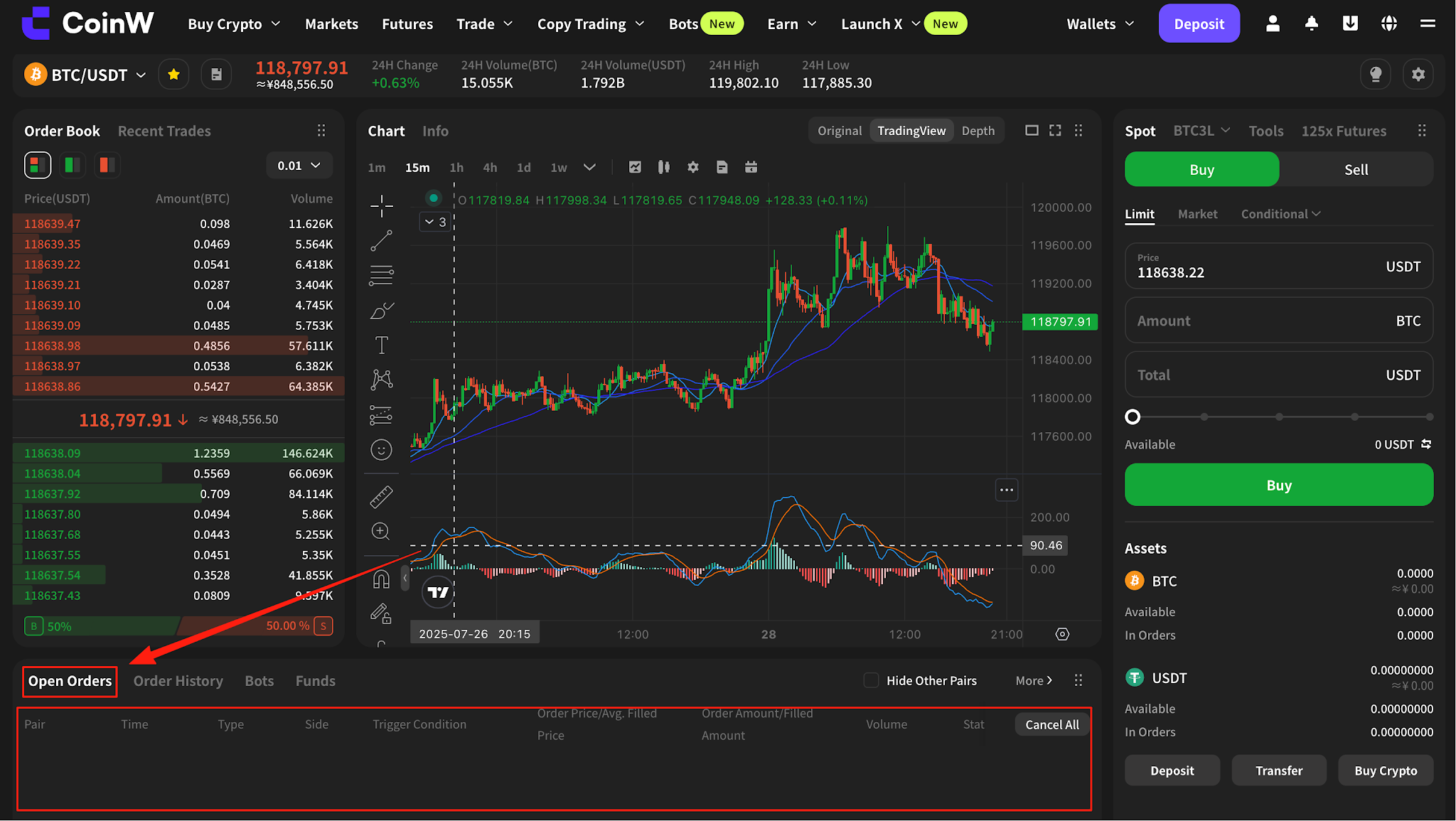
3. View Order Records
On this page, you can view:
Open Orders (orders that are still pending)
Order History (orders that have been filled or canceled)
II. Checking Order Records via CWpro Mobile App
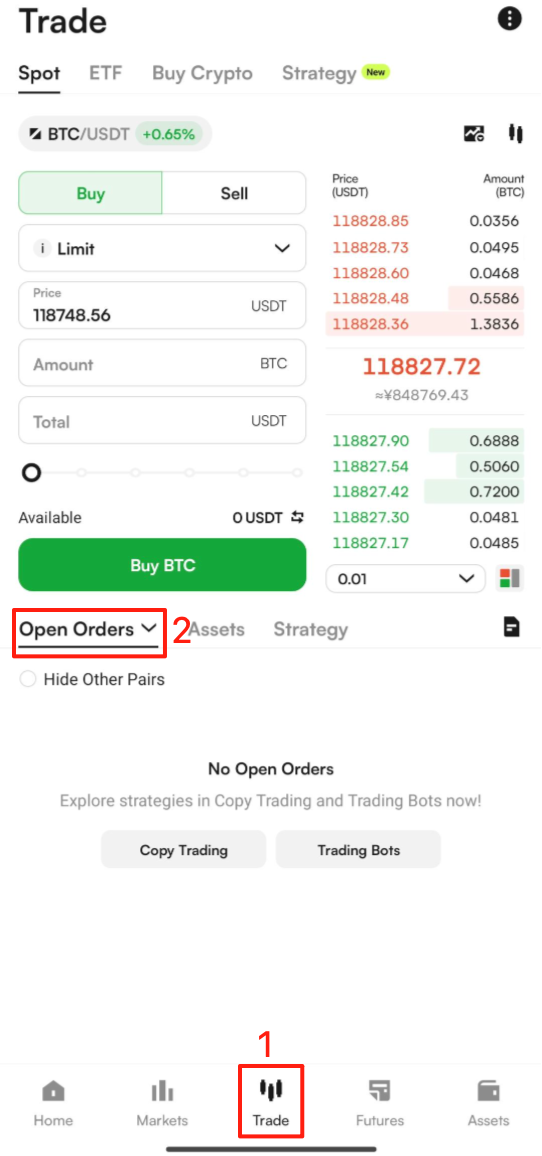
1. Open the CWpro App and Log In
Ensure you are using the latest version of the app and log in to your account.
2. Tap on the "Trade" Button
3. Located in the bottom navigation bar.
Kind Reminder
1. Order records are updated in real time. If a trade has just been completed, please wait a moment for the update.
2. By following the steps above, you can easily check your order history on the CWpro platform. Whether you are using the web version or the mobile app, managing your trading records is simple and efficient.
For further questions, feel free to visit the CWpro Help Center or contact Customer Support.
After performing a spot trade on the CWpro platform, users can check their order records — including open orders and order history — through the web platform or mobile app. Below are the detailed steps:
I. Checking Order Records via Web (PC)
1. Log in to the CWpro Website
Open your browser and go to:https://www.cw.pro
Enter your account credentials and complete the login.
2. Go to the Trading Records Page
Once logged in, you can directly access the spot trading records via:https://www.cw.pro/wallet/exchange
3. View Order Records
On this page, you can view:
Open Orders (orders that are still pending)
Order History (orders that have been filled or canceled)
II. Checking Order Records via CWpro Mobile App
1. Open the CWpro App and Log In
Ensure you are using the latest version of the app and log in to your account.
2. Tap on the "Trade" Button
3. Located in the bottom navigation bar.
Kind Reminder
1. Order records are updated in real time. If a trade has just been completed, please wait a moment for the update.
2. By following the steps above, you can easily check your order history on the CWpro platform. Whether you are using the web version or the mobile app, managing your trading records is simple and efficient.
For further questions, feel free to visit the CWpro Help Center or contact Customer Support.