

FAQ
This guide is intended for users who have already received their physical CWpro Card. It will walk you through how to complete the card binding process using the "One-Click Link Card" feature. This process supports receiving the card first and completing identity verification afterward.
Steps:
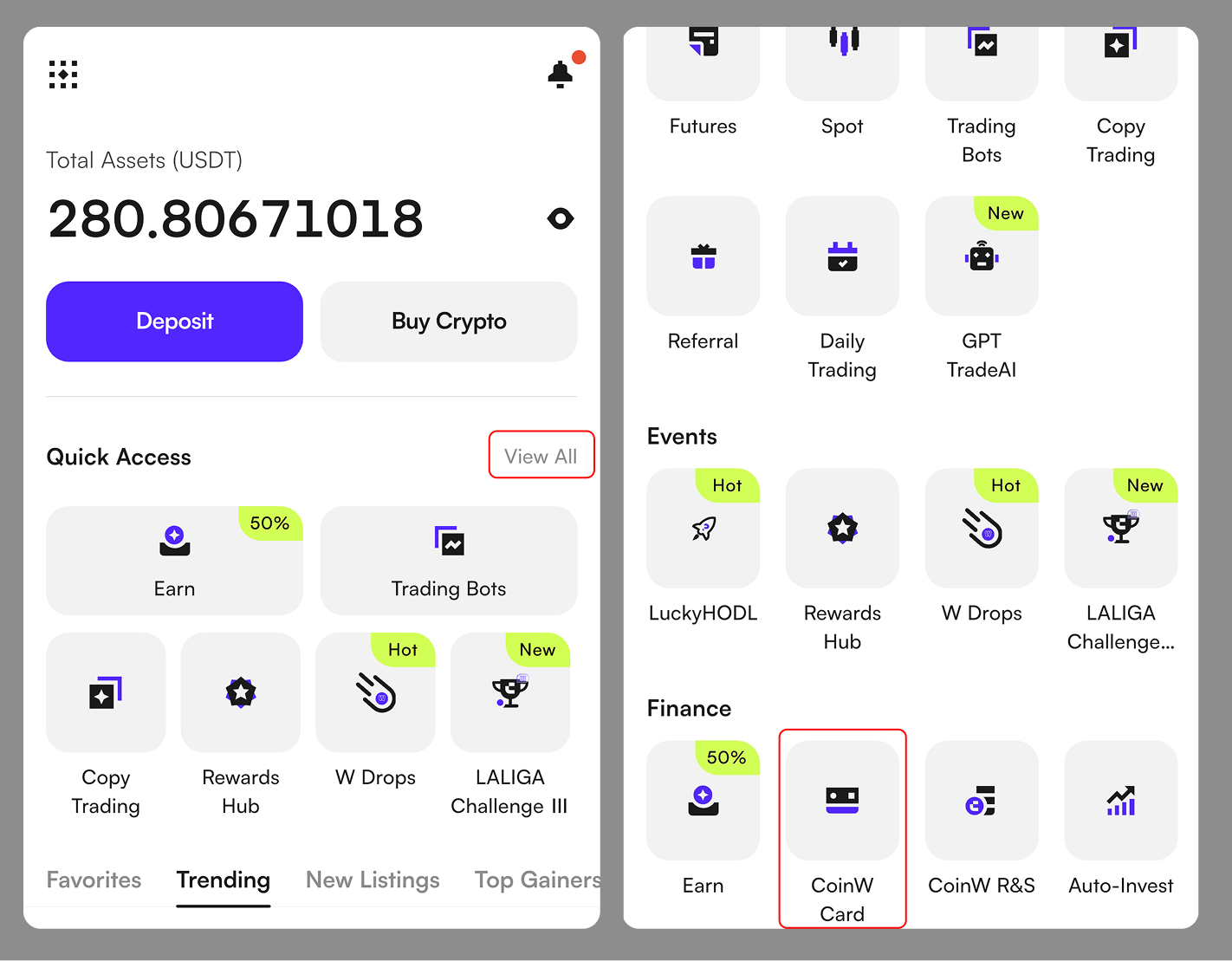
Open the CWpro App. From the homepage, tap "View All" next to Quick Access, and find [CWpro Card] under the Finance section.
Tap the "Link Card" button on the right side.
If the button is not visible, please update the App via Settings or your device’s App Store.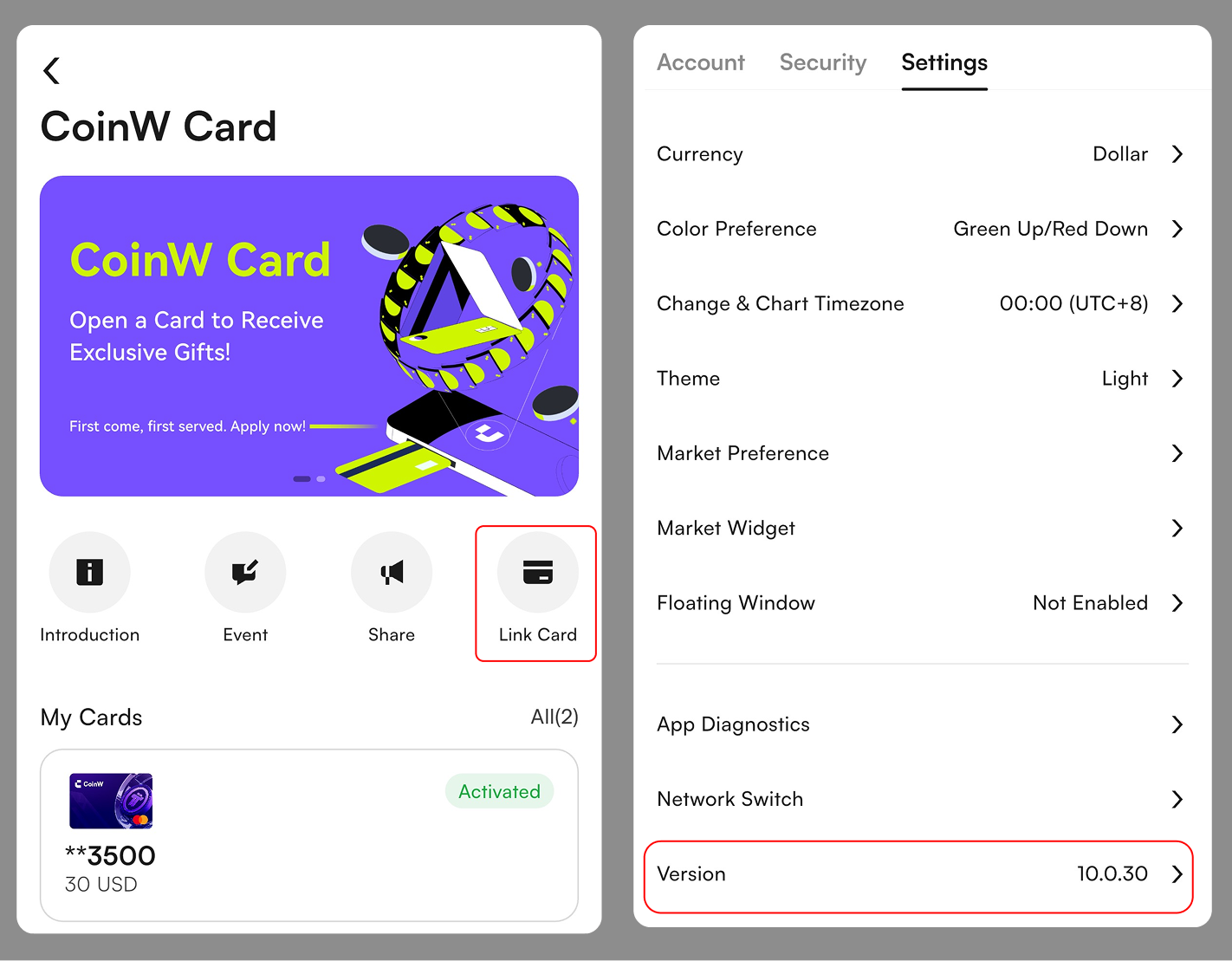
Locate the card number on your physical card and enter it into the Card Number field:
For Singapore USD cards: the Envelop Activation Code is the last 6 digits of the card number.
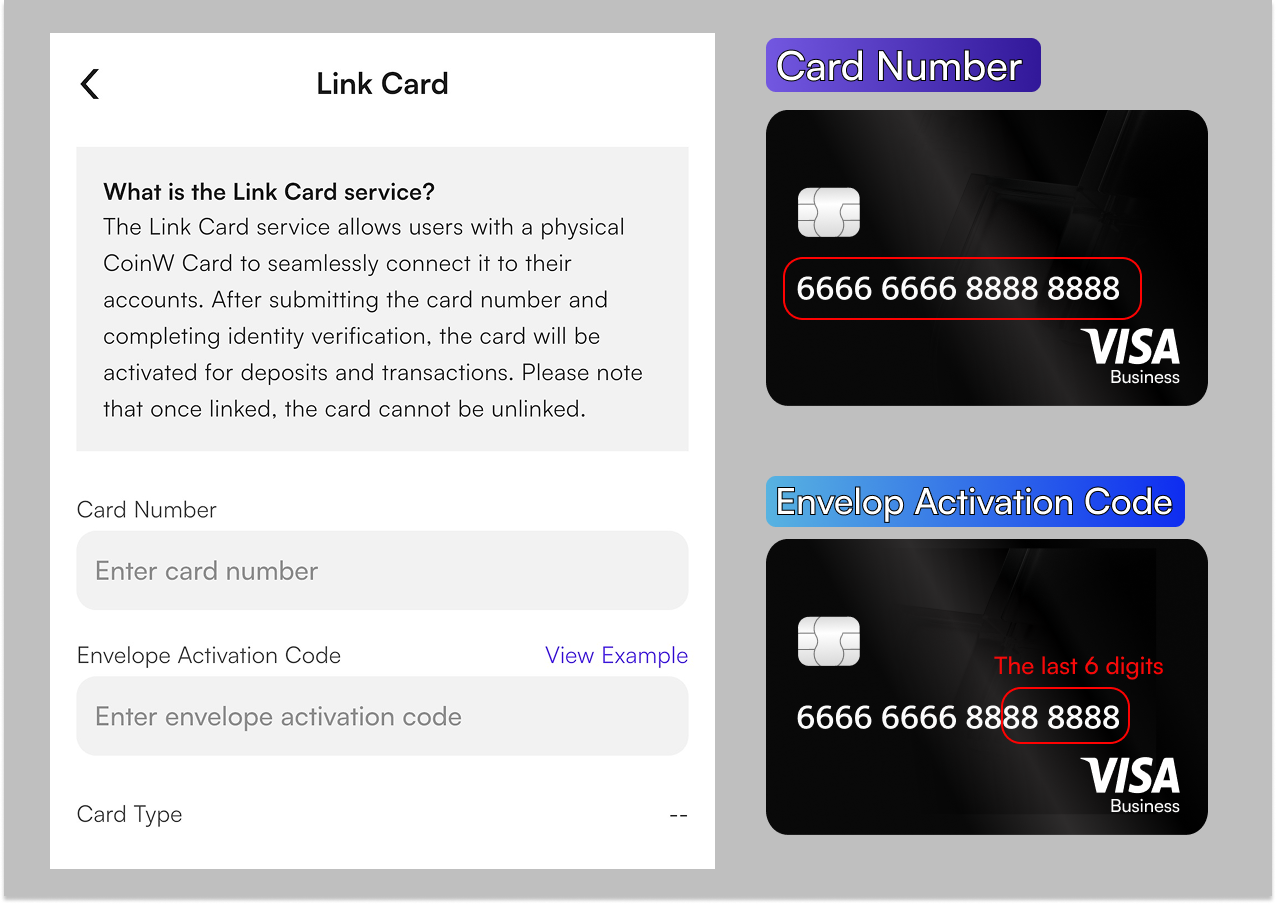
For other cards: use the number below the barcode on the back of the card.
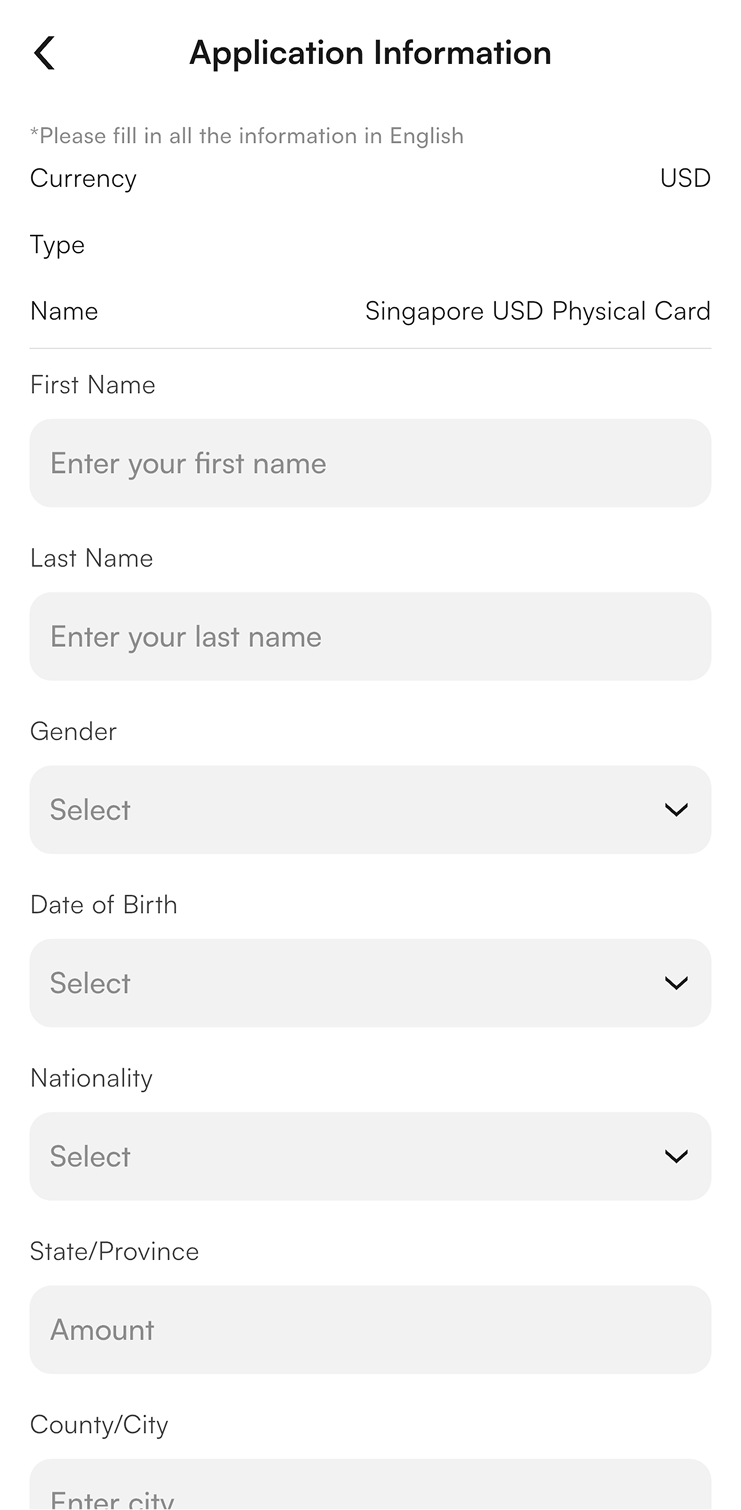
Complete the KYC identity verification as instructed. Once approved, your card will be successfully linked.
Got questions? Want the latest scoop? Join our global fam on Telegram — talk with our team, get real-time help, and never miss an update: https://t.me/CoinWCard
This guide is intended for users who have already received their physical CWpro Card. It will walk you through how to complete the card binding process using the "One-Click Link Card" feature. This process supports receiving the card first and completing identity verification afterward.
Steps:
Open the CWpro App. From the homepage, tap "View All" next to Quick Access, and find [CWpro Card] under the Finance section.
Tap the "Link Card" button on the right side.
If the button is not visible, please update the App via Settings or your device’s App Store.
Locate the card number on your physical card and enter it into the Card Number field:
For Singapore USD cards: the Envelop Activation Code is the last 6 digits of the card number.
For other cards: use the number below the barcode on the back of the card.
Complete the KYC identity verification as instructed. Once approved, your card will be successfully linked.
Got questions? Want the latest scoop? Join our global fam on Telegram — talk with our team, get real-time help, and never miss an update: https://t.me/CoinWCard